
SAM Broadcaster Common Issues
Already connected and broadcasting, but something's off? These are the three SAM Broadcaster problems we get asked about most, and how to fix each one.
Applies to: all plans.
This page is for problems that happen after you're set up. If you haven't configured SAM yet, start with the SAM Broadcaster Setup guide. If your stream won't connect at all, see SHOUTcast Connection Issues.
Deck A or B won't play
You load a track onto a deck and it freezes, or it just won't start. Nine times out of ten this is the audio output device, not the track.
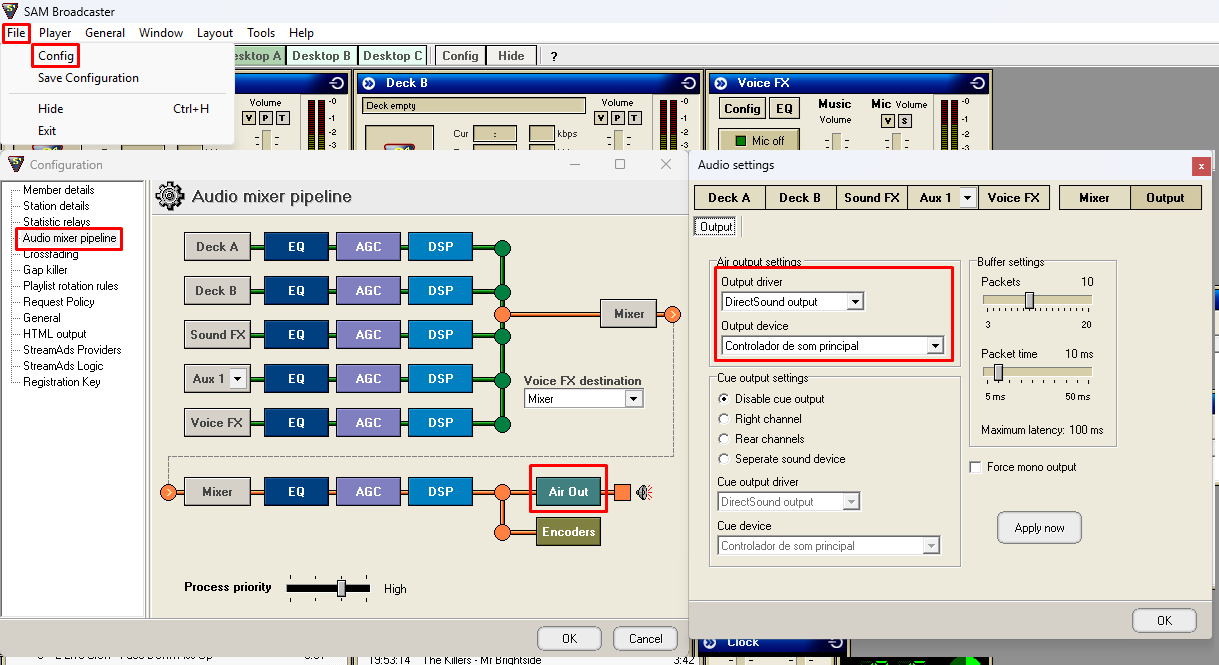
- In the top toolbar, click Config, then Audio Mixer Pipeline.
- Click the Air Out button. An Audio Settings window opens.
- Under Air output settings, open the Output driver dropdown and pick your driver. DirectSound is the usual choice.
- Do the same for Output device: open the dropdown and pick your device.
- Pick both manually even if the right one already looks selected. Reselecting forces SAM to re-bind to the device, which is the actual fix.
- Click Apply now, then OK.
USB devices: plug them into the same port every time before you start your computer. If the port changes, Windows can hand SAM a different device and the binding breaks again.
Microphone not working
Your mic isn't picked up when you talk. Work through these in order, they're the same checks our staff would run.
- Check the hardware. If your headset has an inline mute switch, make sure it's off.
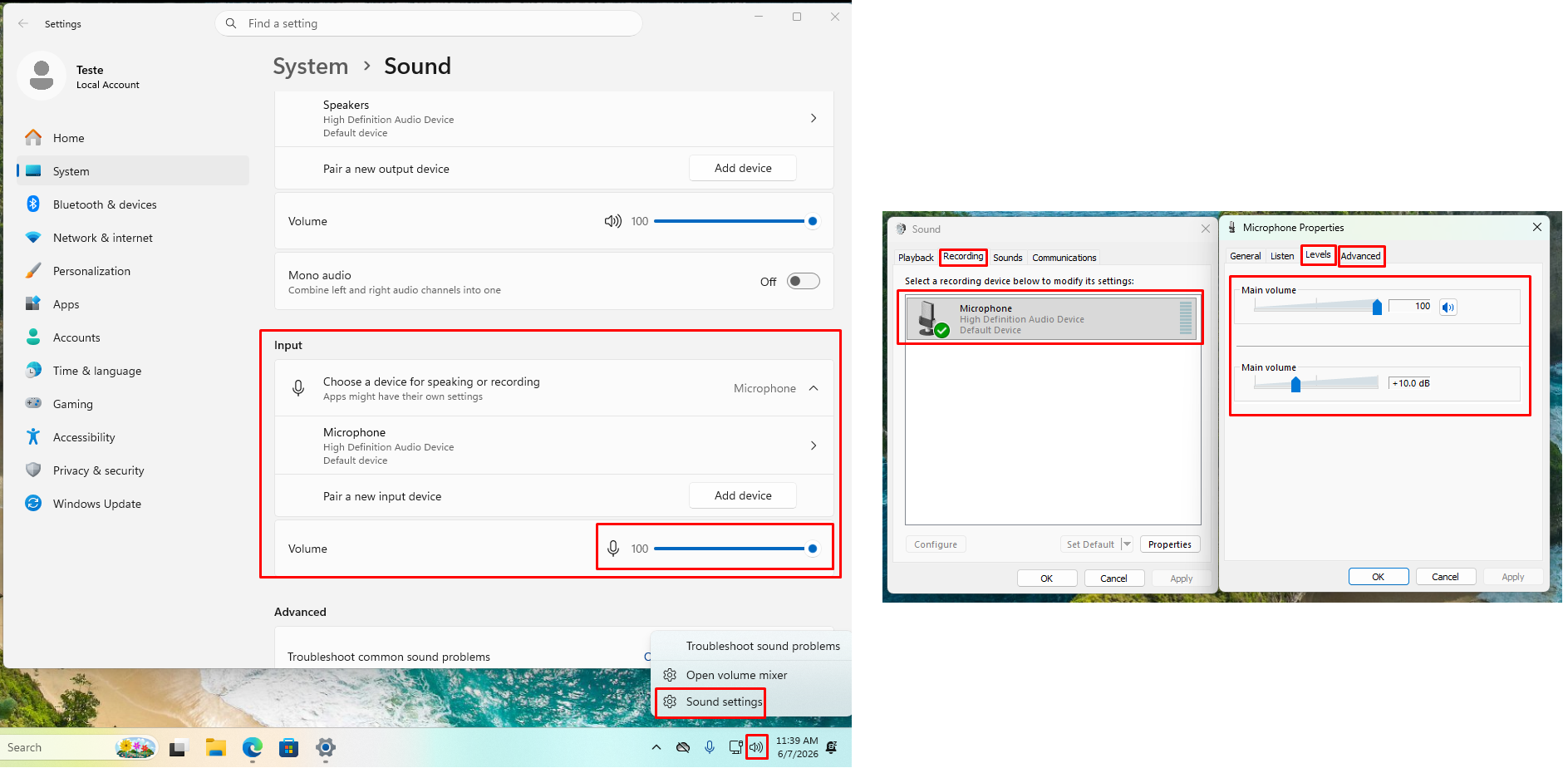
- Test it in Windows first. Open your sound settings and talk. If the input meter doesn't move there, the problem is in Windows, not SAM, so fix it here before going further.
- Check the device in SAM. With the mic off, click Config in the Voice FX box. In Record Soundcard Device, confirm your mic is the one selected. If not, pick it from the dropdown, click OK, and test again.
- Check the level. Back in your Windows sound settings, open the microphone's properties and go to Levels. Set the volume to 100. If there's a separate Boost slider, turn it up too.
- Release exclusive control. Still in the mic properties, open the Advanced tab and untick Allow applications to take exclusive control of this device. Another program grabbing the mic is a common cause.
- Replug and restart. If it still won't work, shut down, unplug the mic, plug it back in, and restart. If nothing changes after all of this, the mic itself may be faulty.
Listeners hear you, not the music
Your voice goes out fine but the music doesn't, even with the mic switched off. This is the wrong button selected in the encoder toolbar.
- SAM 4.9 and newer: make sure the DSP button is pressed, not the red button.
- SAM 4.2: there's a red button and a blue button. Make sure the blue button is pressed.
That button controls whether the encoder takes its audio from the full DSP pipeline (music plus mic) or from the mic alone. With the wrong one active, only the mic goes out.
If nothing works
If you've worked through the steps above and the problem keeps happening, send Caine a message with the details and we'll take a look.
Still stuck?
Reach out and we'll help you get unstuck.